Get ready for my upcoming workshop with this guide to the concepts, examples, and coding challenge.
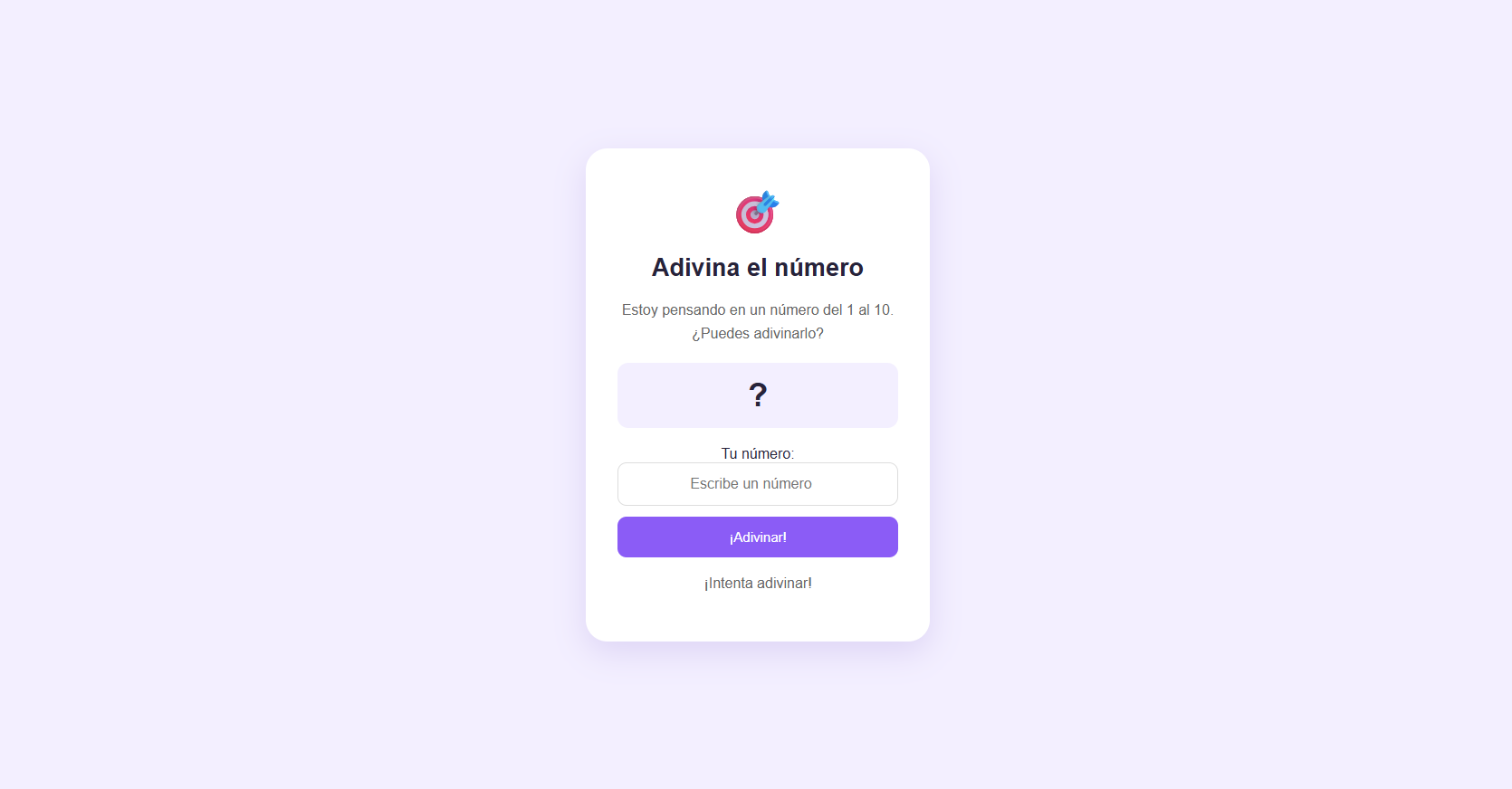
In this beginner workshop, we’ll learn how to give a computer instructions by building a game: guessing a secret number between 1 and 10.
We’ll use CodePen to work in the browser. The HTML and CSS will be ready so we can focus on JavaScript.
Before you start
CodePen is an online editor where you can write HTML, CSS, and JavaScript and see the result on the same page.
Open the materials:
To follow along in CodePen, write the examples in the JS panel. If you download the GitHub project, use script.js.
1. Think through the steps first
Programming means writing instructions to perform a task. An algorithm is the sequence of steps we follow to solve it, much like a recipe.
Our game will follow these steps:
Generate a secret number.
Read the player’s guess.
Compare the numbers.
Show whether the guess is correct, too low, or too high.
2. Store information with variables
A variable is like a named box where we store information.
const name = "Dhanibel";
let attempts = 0;
let won = false;
Here we use three data types:
string: text, such as"Dhanibel".number: numbers, such as0.boolean: true or false, such asfalse.
let allows reassignment; const does not.
Generate the secret number
const secretNumber = Math.floor(Math.random() * 10) + 1;That looks like a lot for one line. Let’s break it down:
PartWhat it doesMath.random()Generates a decimal from 0 up to, but not including, 1.* 10Scales that value to a range from 0 up to, but not including, 10.Math.floor()Rounds down, giving us an integer from 0 to 9.+ 1Shifts the result to a range from 1 to 10.
For example: 0.73 → 7.3 → 7 → 8.
3. Make decisions with conditions
Operators let us compare values:
===: checks whether two values are equal without converting their types.<: less than.>: greater than.
With if, else if, and else, we choose what happens based on the result:
const guess = 5;

if (guess === secretNumber) {
  console.log("You won!");
} else if (guess < secretNumber) {
  console.log("Try a higher number");
} else {
  console.log("Try a lower number");
}
console.log() displays information in the console, which is useful for checking what our program is doing.
4. Organize instructions with functions
A function groups instructions so we can run them when we need them.
function greet() {
  console.log("Hello!");
}

greet();
First, we define greet; then we run it by writing its name followed by parentheses.
In our game, we’ll create checkGuess() and run it when someone clicks the button.
5. Connect the logic to the page
The DOM is the representation of the page that JavaScript can read and modify.
Here are the tools we’ll use:
CodePurposedocument.getElementById()Finds an element by its ID..valueReads the contents of an input.Number()Converts a value to a number..textContentChanges an element’s text.addEventListener()Runs a function when an event occurs.
Complete the challenge
This code works with the guess, guessButton, and message elements in the starter project. Replace the earlier examples with this version:
const secretNumber = Math.floor(Math.random() * 10) + 1;

const input = document.getElementById("guess");
const button = document.getElementById("guessButton");
const message = document.getElementById("message");

function checkGuess() {
  const guess = Number(input.value);

  if (
    input.value.trim() === "" ||
    !Number.isInteger(guess) ||
    guess < 1 ||
    guess > 10
  ) {
    message.textContent = "Enter a whole number from 1 to 10";
  } else if (guess === secretNumber) {
    message.textContent = "🎉 You won!";
  } else if (guess < secretNumber) {
    message.textContent = "📈 Try a higher number";
  } else {
    message.textContent = "📉 Try a lower number";
  }
}

button.addEventListener("click", checkGuess);
The validation rejects empty inputs, decimals, and numbers outside the range. || means “or,” and ! means “not”: if any error condition is true, we display the warning.
When the button is clicked, checkGuess() reads the value, compares it with the secret number, and updates the message.
This first version allows unlimited guesses. The secret number stays the same until the code runs again.
6. Test it and make it your own
Check what happens with an empty input, a decimal, and a number outside the range. Then play by following the hints.
To see the secret number while testing, temporarily add:
console.log(secretNumber);Once it works, try:
Changing the range to 1–20, including generation and validation.
Customizing the messages.
Adding an attempt counter.
Making the “Play again” button generate a new number.
The goal of this workshop is to understand how to solve a problem step by step. Learning the code comes with practice.